




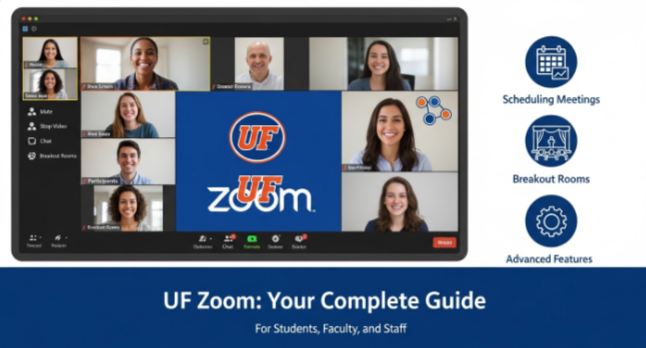
“UF Zoom” is used to describe the official video conferencing service at the University of Florida, which utilizes Zoom technology as a cloud-based application to deliver online meetings, virtual classroom capabilities, and collaboration between students, faculty, staff, and departments at UF. While it is similar to regular Zoom, UF Zoom is unlike regular Zoom as it provides different features and rights to access the application.
UF Zoom is available to all UF members of the university. Whether you are a student attending virtual classes, a faculty member teaching a lecture, or an administrator hosting an event, UF Zoom is the way to go!
Why UF Zoom Matters – Transforming Online Education and Communication
In today’s digital world, video conferencing and virtual collaboration are essential. Especially in academic institutions like UF — a top‑tier public research university with global reach — virtual communication tools are indispensable.
Here’s why U F Zoom matters:
✨ 1. Seamless Virtual Learning
UF Zoom lets instructors deliver synchronous learning experiences for students across classes, labs, and discussion sessions. All UF students automatically receive a licensed Zoom account to participate in scheduled meetings.
✨ 2. Efficient Collaboration
Faculty and staff can host team meetings, workshops, interviews, and departmental gatherings. Zoom’s features support real‑time interaction and collaboration.
✨ 3. Accessible for All UF Members
U F Zoom integrates with core systems like Canvas and Outlook, simplifying scheduling, joining meetings, and managing virtual events.
✨ 4. Flexibility Across Devices
Whether you’re on a laptop, tablet, or mobile phone, U F Zoom works across platforms, ensuring you stay connected anywhere.
📲 How to Get Started with UF Zoom – Step‑by‑Step Guide
Here’s the step‑by‑step process to begin using U F Zoom like a pro:
✅ Step 1: Access the UF Zoom Portal
Go to ufl.zoom.us — this is the official Zoom portal for University of Florida users.
✅ Step 2: Sign In with SSO
Click Sign In → select Single Sign‑On (SSO) → enter “ufl” as the company domain → log in using your GatorLink credentials.
This step ensures your Zoom account is authenticated with UF’s secure systems.
✅ Step 3: Download the Zoom Client
Once logged in, download the Zoom application for your device — available on Windows, Mac, iOS, or Android.
✅ Step 4: Configure Your Profile
Update your Zoom profile with a display name, photo, and contact info. This makes it easier for other UF users to recognize you during meetings.
✅ Step 5: Schedule or Join a Meeting
-
Host Meeting: Schedule directly through the Zoom portal or integrate with Outlook and Canvas.
-
Join Meeting: Click the link provided by the host or enter the meeting ID in Zoom.
📚 UF Zoom Features – Unlocking Powerful Tools for Engagement
UF Zoom is more than basic video calling. It includes advanced tools that make virtual interaction effective:
💡 1. High Participant Capacity
Standard meetings support up to 300 participants, and larger webinar rooms (500–1000 seats) are available by request.
💡 2. Live Transcriptions and Captions
Zoom can provide real‑time automated captions and transcription, helping accessibility and inclusion in classrooms and meetings.
💡 3. Breakout Rooms
Separate your meeting into smaller discussion groups automatically — great for classrooms and workshops.
💡 4. Screen Sharing & Whiteboards
Share your screen, slides, or virtual whiteboards for interactive learning and collaboration.
💡 5. Recording & Cloud Storage
Record sessions for later viewing or revision — especially useful for students who miss live classes.
💡 6. AI Companion
Some UF Zoom accounts include Zoom’s AI Companion, which can summarize meetings and generate visual content during your calls.
🔒 Security and Best Practices on UF Zoom
Security is critical for virtual meetings — especially for academic settings where privacy is essential.
✔️ Default Security Features
When creating meetings, UF Zoom ensures:
-
Waiting rooms
-
Passcodes
-
Authenticated users only join sessions
These default settings prevent unauthorized access and Zoombombing.
✔️ Best Practices for Secure Meetings
-
Always enable a meeting password.
-
Use waiting rooms to screen guests.
-
Restrict sharing options to only hosts or selected participants.
🎓 Teaching and Learning with UF Zoom
🧑🏫 Instructors & Professors
U F Zoom is deeply integrated into course delivery:
-
Schedule live lectures directly in your Canvas course.
-
Record classes automatically for student access later.
Tip: Add Zoom to your Canvas navigation bar to make it easily available for your students.
👩🎓 Students
Students can:
-
Attend synchronous sessions with professors.
-
Participate in group meetings and assignments.
-
Access meeting recordings for review.
Pro Tip: Use headphones and a stable internet connection for a better audio and video experience.
📅 Hosting Large Events – Zoom Webinars at UF zoom
For university events like seminars, guest speakers, alumni talks, and public webinars, U F Zoom offers:
🟦 Zoom Webinar Hosting
Zoom webinars can support large audiences beyond 300 participants. These are view‑only sessions, ideal for public events and official engagements.
📊 Moderation Tools
Webinars include tools for Q&A, polling, and controlled audience interaction — perfect for professional or academic presentations.
📈 Optimizing Your Zoom Meetings at UF
To make your U F Zoom sessions engaging and productive:
🔧 Audio & Video Quality
-
Use a good webcam and mic.
-
Ensure proper lighting so attendees can see you clearly.
-
Mute participants on entry to avoid background noise.
🤝 Engagement Features
-
Enable polling for quick feedback.
-
Use annotation tools for collaborative sessions.
📊 Interaction
Encourage interaction with:
-
Chat features
-
Breakout groups
-
Live Q&A
These enhance virtual engagement.
🧩 UF Zoom Tips for Mobile Users
Using U F Zoom on mobile devices is possible and convenient:
-
Download the Zoom Cloud Meetings app from the App Store or Google Play.
-
Sign in using SSO with your UF domain.
-
Mobile participants can join meetings, view shared screens, and participate in chats.
🤝 Common Use Cases for UF Zoom
U F Zoom isn’t just for classrooms — its versatility makes it useful for:
📌 Academic Meetings
Panel discussions, thesis defenses, one‑on‑one mentoring, research collaboration.
📌 Administrative Work
Department meetings, HR presentations, committee meetings.
📌 Events and Recruitment
Admissions interviews, orientation sessions, student‑organization events, alumni talks.
❓ Frequently Asked Questions about uf zoom
❓ Do I need a separate Zoom login?
No — UF Zoom uses your GatorLink credentials so your UF username/password works across Zoom and other UF systems.
❓ Can I join UF Zoom without installing anything?
Yes — you can join through a browser, though installing the Zoom app offers the best experience.
❓ Are my Zoom sessions secure?
Yes — UF implements enforced security settings like waiting rooms and passcodes.
❓ Can I host events larger than 300?
Yes — UF supports webinar licenses for larger audiences upon request.
🏁 Conclusion about uf zoom
UF Zoom is not just a video platform; it is a holistic virtual communication system that the University of Florida provides for learning, collaboration, and community engagement. Be it learning online as a student, teaching lectures as faculty, or organizing events as staff, U F Zoom equips you with the essential tools for a connected university experience.
With seamless integration into UF’s systems, powerful features like transcription and breakout rooms, and enhanced options like Zoom webinars, U F Zoom is central to modern academic communication.
If you haven’t explored U F Zoom yet, now is the time to log in, join your first meeting, and unlock the full potential of this key tool.